Discover Scribe tools
A compatible client detects the Site tools available in the open editor. The current validated Desktop build exposes 41 tools, but the exact surface can evolve.
Login to Scribe Animator
Compatible browser agents can discover semantic Scribe Site tools, inspect the project you can see, and make intentional edits without relying on fragile screen coordinates or creating a hidden second editor.
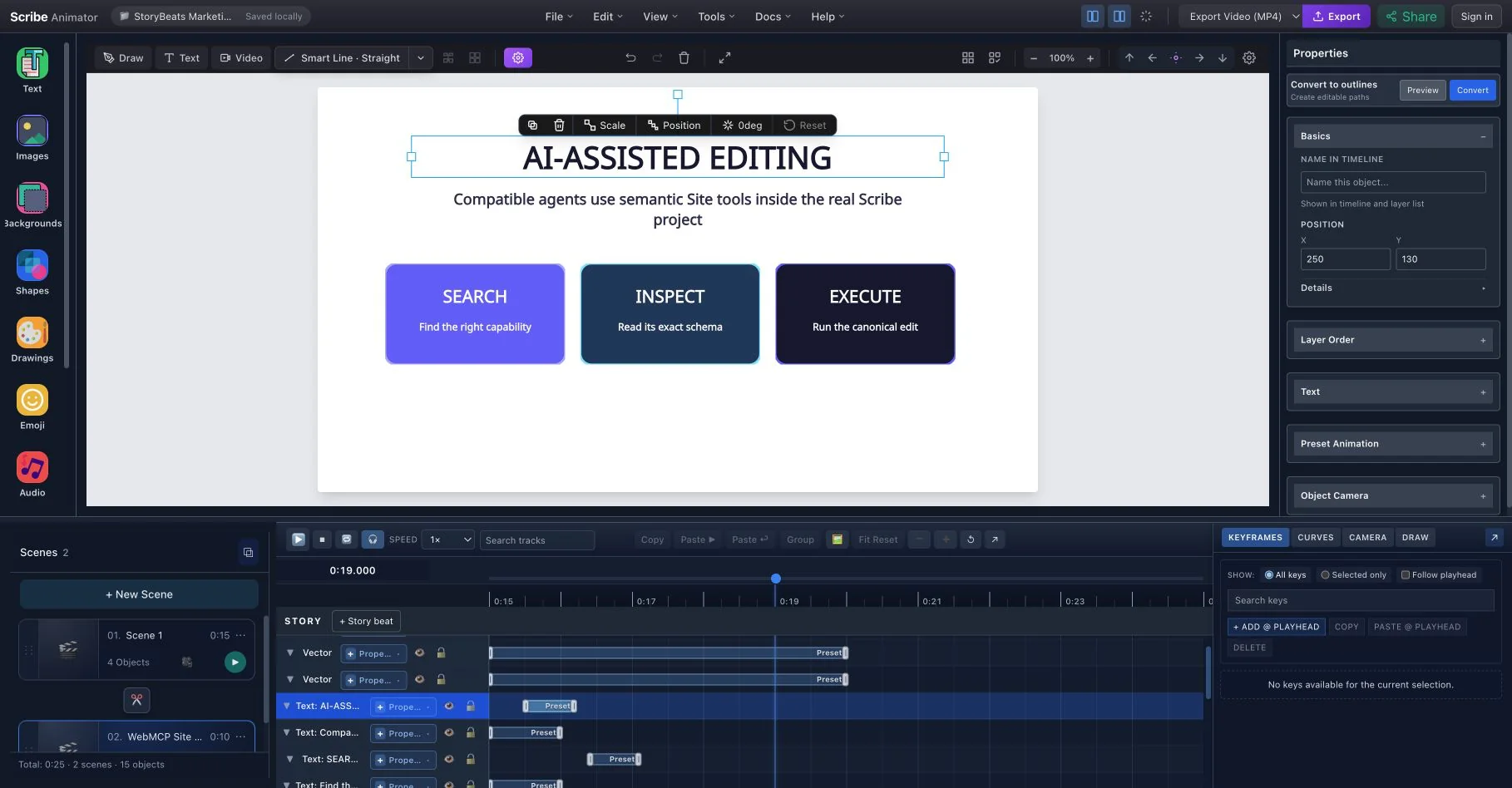
Screen-click automation guesses where controls are. WebMCP publishes typed, task-level actions instead. A compatible agent can search Scribe's capabilities, inspect the exact input contract, and execute the canonical operation against the visible project.
The compatible client associates the tools with app.scribeanimator.com and shows the current read/write surface. This complements the visible edit result above: discovery first, then an intentional operation in the real editor.
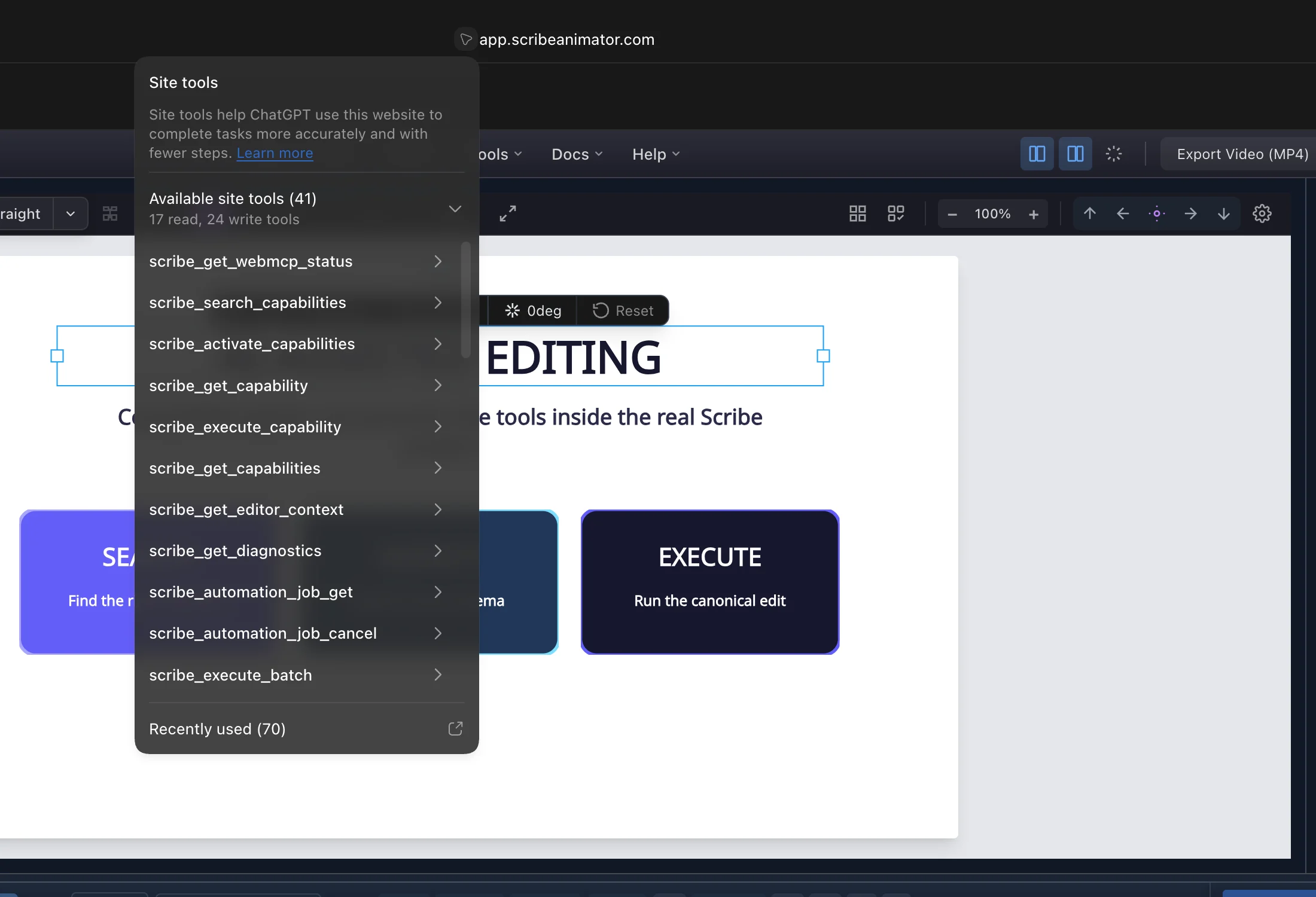
A compatible client detects the Site tools available in the open editor. The current validated Desktop build exposes 41 tools, but the exact surface can evolve.
Ask the agent to inspect project state, scenes, or locked objects first. Early discovery and status remain available while project continuity initializes.
Agent actions update the same project shown on the canvas. Where the underlying Scribe capability supports history, ordinary Undo remains available.
For larger tasks, the agent searches capabilities, obtains the exact schema, then executes that canonical capability through the broker.
Review the visible scene, timeline, selection, or inspector just as you would after a manual change. Locks, permissions, entitlements, and validation still apply.
The agent can prepare workflows, but local-file selection, recording-source permission, credentials, purchases, and similar browser-owned decisions remain yours.
“Inspect the current project and list locked objects.”
“Create a new scene, add a heading, center it and animate its entrance.”
“Find a drawing that fits this explanation and add it to the scene.”
“Move this narrative beat three seconds later.”